Instructions for creating questions and tests with quizizz

Quizizz is a free online evaluation tool. It allows users to make reviews in many forms for students of all ages and classrooms in an interesting and attractive way. It works on all devices from the web browser to the iOS, Android and Chrome applications.
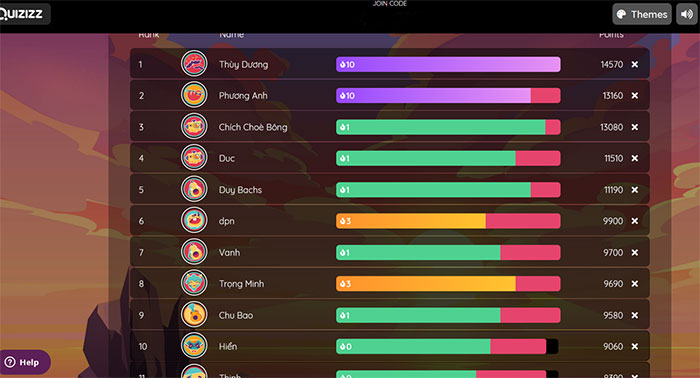
Quizizz allows teachers to create their own puzzles and questions. After providing students with unique access codes, the test with questions that the teacher has just created can play directly as the time competition or use the homework with a specific time limit.
After completing the puzzles, students can review their answers. Moreover, the results of the results are compiled into a spreadsheet to provide the instructor a clear view of student performance.
This instant response test type can be used by teachers to modify future learning activities and improve the content of the lesson by focusing more on the concepts to study. Sinh is having difficulty.
Users can access hundreds of available learning puzzles or create their own new questions. Let’s learn how to create accounts and basic use of Quizziz for beginners.
How to create Quizizz account
Step 1: Visit Quizizz.com and press Get Started.

Step 2: Choose to create an account through Google/Microsoft by clicking Continue with Google or Continue with Microsoft.
Step 3: Choose 1 of 3 purposes to use Quizizz is to study (at a school), job (at a business) and individual (Personal use).
Step 4: The main interface of Quizizz will open, along with the necessary toolbars on the left side.
Instructions for creating tests with quizizz
Step 1: On the toolbar on the left, press the button Create Purple to create new questions.
Step 2: In the overlooking window, enter the name and select the topic of the test. Click Next To continue.
Step 3: If you want to search for questions available, enter the keyword in the Teleport Questions search bar and click Search.
If you want to create your own puzzle, choose the form of questions in the section Create a New Question.
There are 6 types of questions including:
- Multiple Choice: Choose the correct answer from many answers.
- Checkbox: Tich in the box before the correct answer.
- Fill in the blank: Enter the correct answer to the box.
- Poll: The respondent will vote for the type of exploration.
- Open-ended: The respondent arbitrarily entered the answer to the open question.
- Slide: Create PowerPoint for the lesson.
Step 4: Enter the question, the answers and choose the correct answer In the corresponding cells. The creator can add images, audio and videos to each question and answers with the symbolic images on the right of each sentence. Change the answer time from 5 seconds to 15 minutes in the bottom left corner of the questionnaire.
To add images to the question, click the button Image Next to the field of the question text. Users can also add text questions and/or images in the same way. Adjust the time to answer the question from the drop -down list.
All questions must have 2 to 5 answers options. Click the option Add Answer If you want and save to provide some options for answering the question.
Now people can also add images as the option to answer or images in the question. Upload images for the answer options (from the drop -down list as shown below).
Step 5: Click Save To save the newly created question.
Step 6: People can repeat the above steps to create many different questions for a test. Then click the button Publish To officially complete and publish that test.
Step 7: When the test is ready, people can check it again by clicking on Practice. Or the instructor can choose between Start a live quiz To start for others to take the test immediately or assign homework by clicking on Assign Homework.
- For Start a live quiz: Choose one of the modes Team/Classic/Testthen click Continue. A code that accesses the test will appear, copy and send to others to start answering the question.
- For Assign Homework: Choose the date and time to submit specific papers in the section Custom Deadlineor unlimited No deadline (The medium -sized test will expire after 6 months). Finally press Assign To complete.
Step 8: Users can share games via Google Classroom, Microsoft Teams or copy links and share via email, WhatsApp, … so that students can access. Players or students receive links can participate by their names on laptops or mobile phones.
Guide to use Quizizz for students
Step 1: Know how to use Quizizz
Quizizz is a puzzle game, in which participants have a certain period of time to answer each question. Search the puzzle to play to start by clicking on the search bar and searching for the puzzle topic you want.
Step 2: Find a puzzle
There are many riddles on Quizizz, so look for and click a puzzle to try it. Select Practice to start the test or Challenge Friends to challenge others to take the test.
Step 3: Start the test
After clicking PracticeStart the test by choosing Start. Also, participants can click Challenge Friends To send puzzles to others or Flashcards To view Flashcard.
Step 4: Play puzzles.
When the test starts, the participants will have a certain period of time to answer a question and the timer will be asked for any question if the creator chose to turn on the timer. Answer the correct questions throughout the test.
Step 5: Use support tools if any
Power-ups or support tools gives players more strength and advantages when answering funny puzzles. They can help players avoid mistakes.
There are many tools to support players in Power-up, if the Quiz creator has turned on this feature, the respondent can turn a wheel when reminded and see what he receives. Power-ups in Quizizz include:
| Support tool | Ability |
| Double jeopardy | Players are double points if they choose the correct answer but lose everything if choosing the wrong answer |
| X2 | Players receive double points when answering correctly one question |
| 50-50 | Eliminate half of the options incorrectly |
| Eraser | Eliminate a false option |
| Immunity | It is allowed to answer 1 question twice |
| Time Freeze | The timer is frozen to allow players to have more time to answer a question |
| Power Play | All players in the test received an additional 50% after 20 seconds |
| Streak saver | Ensure the player’s ability in front of a wrong answer |
| Glitch | All the player’s screen is malfunctioning for 10 seconds (not added to the score) |
Step 6: Flashcard research
On the top of the page starts, people will have an option to click Flashcard. Participants can use Flashcards to better understand questions without having to choose between options.


Post Comment